Entre Nous
Copy-paste, only better.
A smart clipboard: shared, cross-platform, end-to-end encrypted, ephemeral, no account, no trace.
Android 7 or later
macOS 14 or later
Windows 10 or 11 · beta
Debian, Ubuntu and derivatives · AppImage for other distributions · beta
On iPhone, add the web app to your Home Screen.
Mac · Android · iPhone · Windows · Linux · CLI

On your phone
Scan this code to open this page on your phone.
How it works
- Install Entre Nous on a first device, or open the web app.
- Add your other devices: scan a QR code or paste a link. No account to create.
- Copy, paste. Text, photos, videos, files: everything arrives on your other devices in an instant.
- Send a folder as easily as a file. See what’s inside, download only what you want.
- Share and receive files with anyone, with a simple link (or a QR code).
- Find any text or file in a few keystrokes.

Between us, and no one else
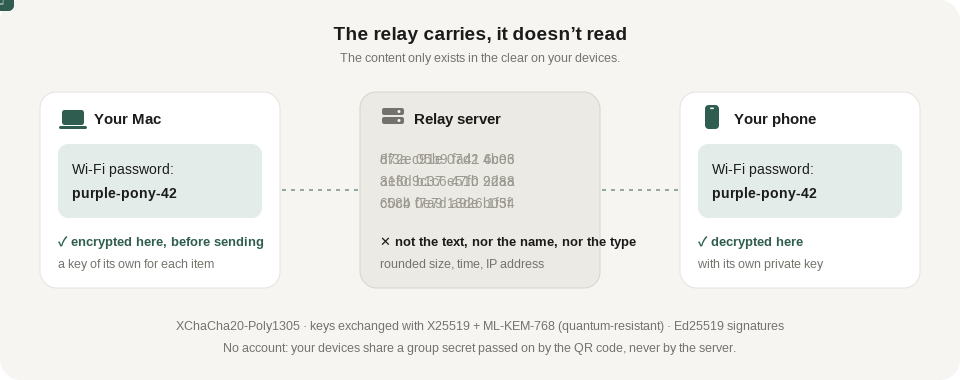
- End-to-end encrypted. Only your devices can read what you share.
- Ephemeral. Everything is deleted automatically, after 10 minutes to 7 days, as you choose.
- No account. No sign-up, no email, no password.
- No tracking. No ads, no trackers, no logs.
- Open source. The code is public (AGPL licence): anyone can check it. See the code on GitHub
Install
Android
Download the app and open the file. Android asks you to allow the installation, because Entre Nous is not on the Play Store.
Entre Nous then shows up in the Share menu of all your apps.
Without installing anything, the web app also works in Chrome.
iPhone and iPad
Open the web app in Safari, then Share → Add to Home Screen.
To add your iPhone, then open Entre Nous from that icon, not from Safari.
Mac
Unzip the file and drag Entre Nous to Applications. The app lives in the menu bar, at the top of the screen. To send a file, drop it on its icon.
On first launch, macOS blocks it, because it is not yet notarized by Apple. Go to System Settings → Privacy & Security, then click Open Anyway.
If your Mac asks for access to the keychain, choose Always Allow.
Windows
Download the installer and run it. If Windows shows “Windows protected your PC”, click More info, then Run anyway: Entre Nous is not signed by a known publisher yet.
The app lives in the notification area, at the bottom right of the screen. To send a file, drop it on its window.
Linux
On Debian, Ubuntu and their derivatives, install the .deb package. Elsewhere, download the AppImage, make it executable and run it.
The app lives in the notification area. On GNOME, you need the AppIndicator extension to see its icon. To send a file, drop it on its window.
Other devices
Nothing to install: the web app works in any recent browser. To send a file, paste it (Ctrl+V) or drop it on the page.
CLI
For servers, scripts and AI agents: the entrenous command, with Homebrew, or with npm and Node.js 22 or newer.
brew install dorianbayart/tap/entrenous
# or: npm install -g https://github.com/dorianbayart/entre-nous/releases/latest/download/entrenous-cli.tgz
entrenous join 'invitation link'
entrenous send report.pdf
entrenous wait
The invitation link is under the QR code, in Settings → Invite a device. Every command
Frequently asked questions
Who can read what I share?
Your devices, and no one else, not even the server: everything is end-to-end encrypted. If you create a share link, whoever you send it to can open that item, and nothing else. The code is open source, anyone can check it.
Are the passwords I copy shared too?
No. On a computer, a password copied from your password manager is never shared automatically.
And what you copy from Entre Nous doesn’t show up in clipboard history tools.
Do I need to install anything?
No. The web app works in any recent browser. The apps do more: share from any app on Android, automatic clipboard sharing on Mac, Windows and Linux.
How do I add a device?
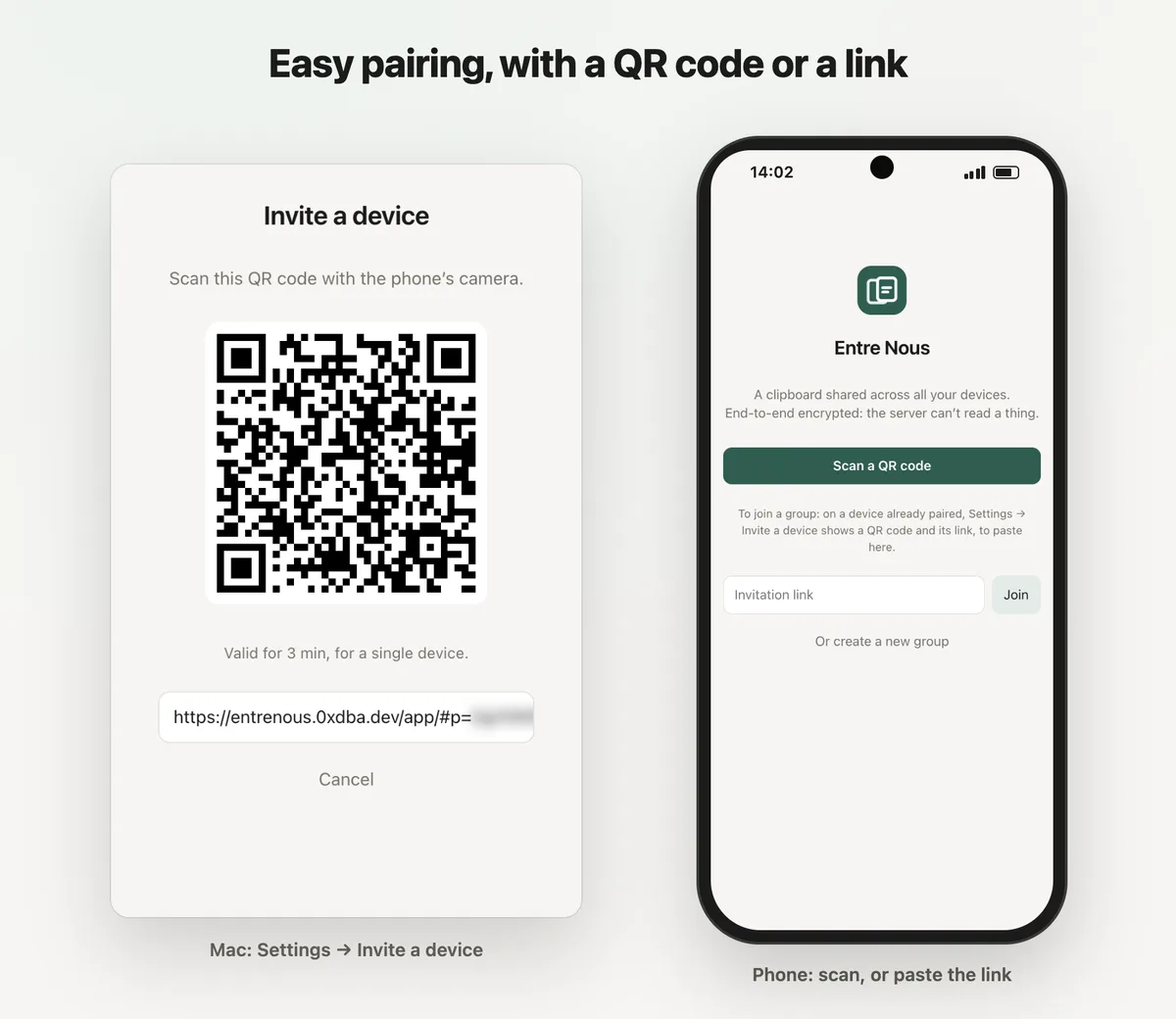
On a device that is already paired, open Settings → Invite a device. Scan the QR code with the new device, or paste the link into Join (handy on a computer without a camera, or from a distance). The invitation is valid for 3 minutes, for a single device.
Can I see a file before downloading it?
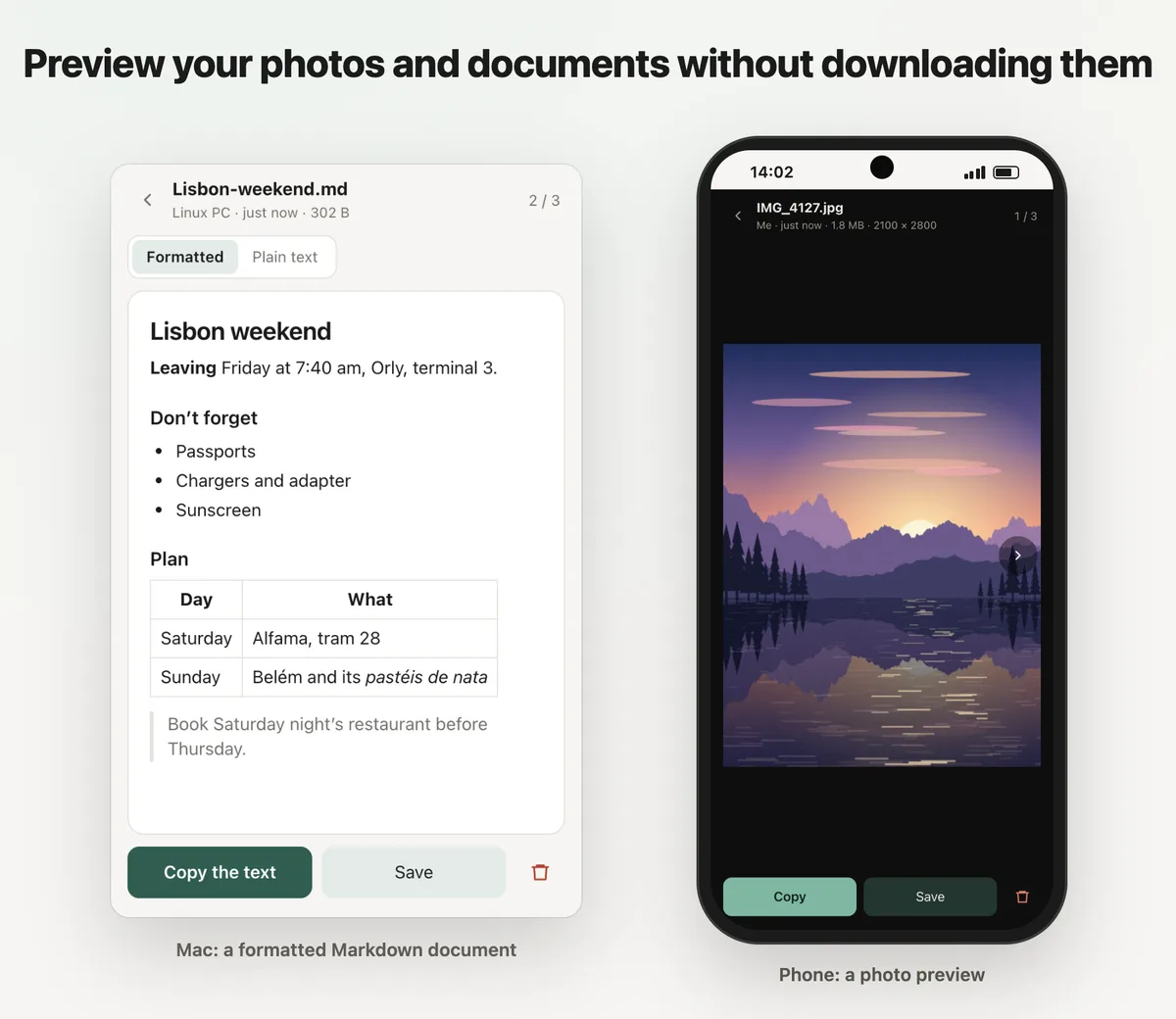
Yes. You can preview a photo or a PDF without downloading it, read a formatted Markdown document before downloading it, and watch a video (even in Picture-in-Picture) or listen to an audio file while it downloads.
Can I send a folder?
Yes. Drag it into the window, or pick it with the Folder button. On your other devices, browse it and open any file without downloading it. Then download one file, one subfolder or the whole folder.
How do I find a file?
Entre Nous has a search and filters by type. Tap the magnifier and type a few letters: the matching files in your history show up. Search happens on your device: the server sees neither what you look for nor what is in your history.
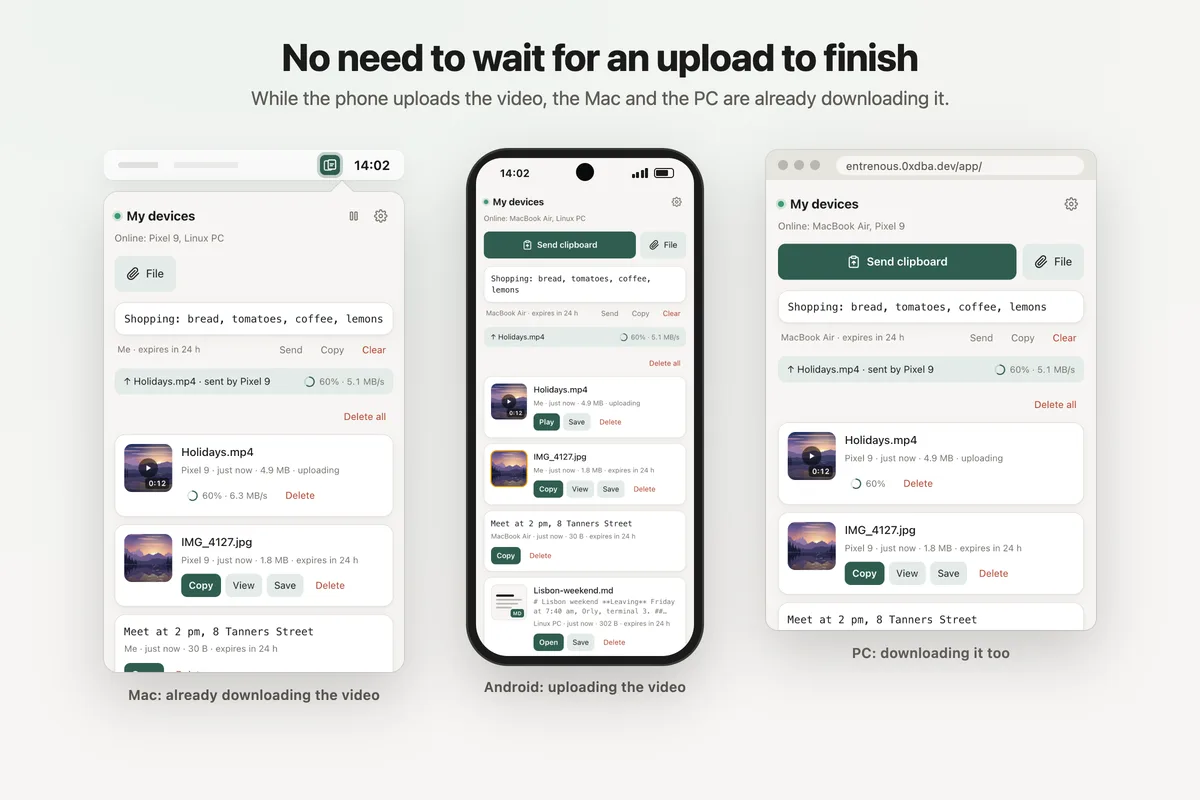
Do I have to wait for a large upload to finish?
No. You can download a file while it is still being uploaded. To copy it, you have to wait for the upload to finish.
At home, does it go through the internet?
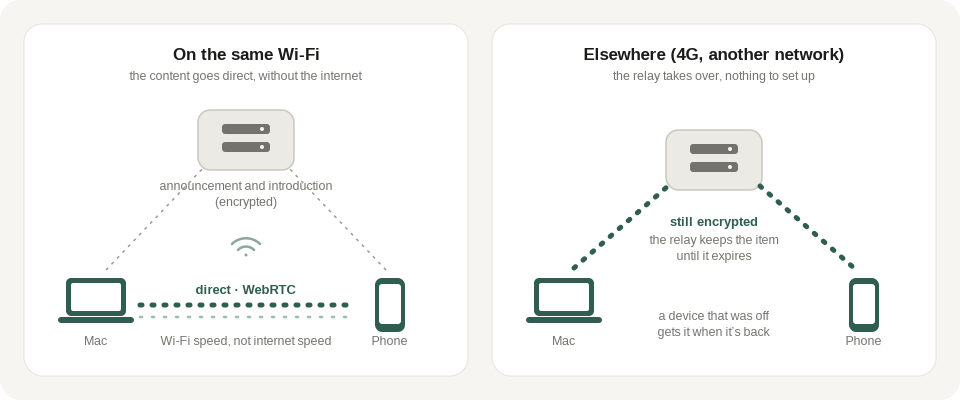
No. On the same Wi-Fi, what you share goes straight from one device to the other, at the speed of your Wi-Fi. Only an encrypted announcement goes through the server.
Elsewhere (4G, another network), it goes through the relay server, still encrypted. With Local network only, what you share never goes through the server.
How long is my data kept?
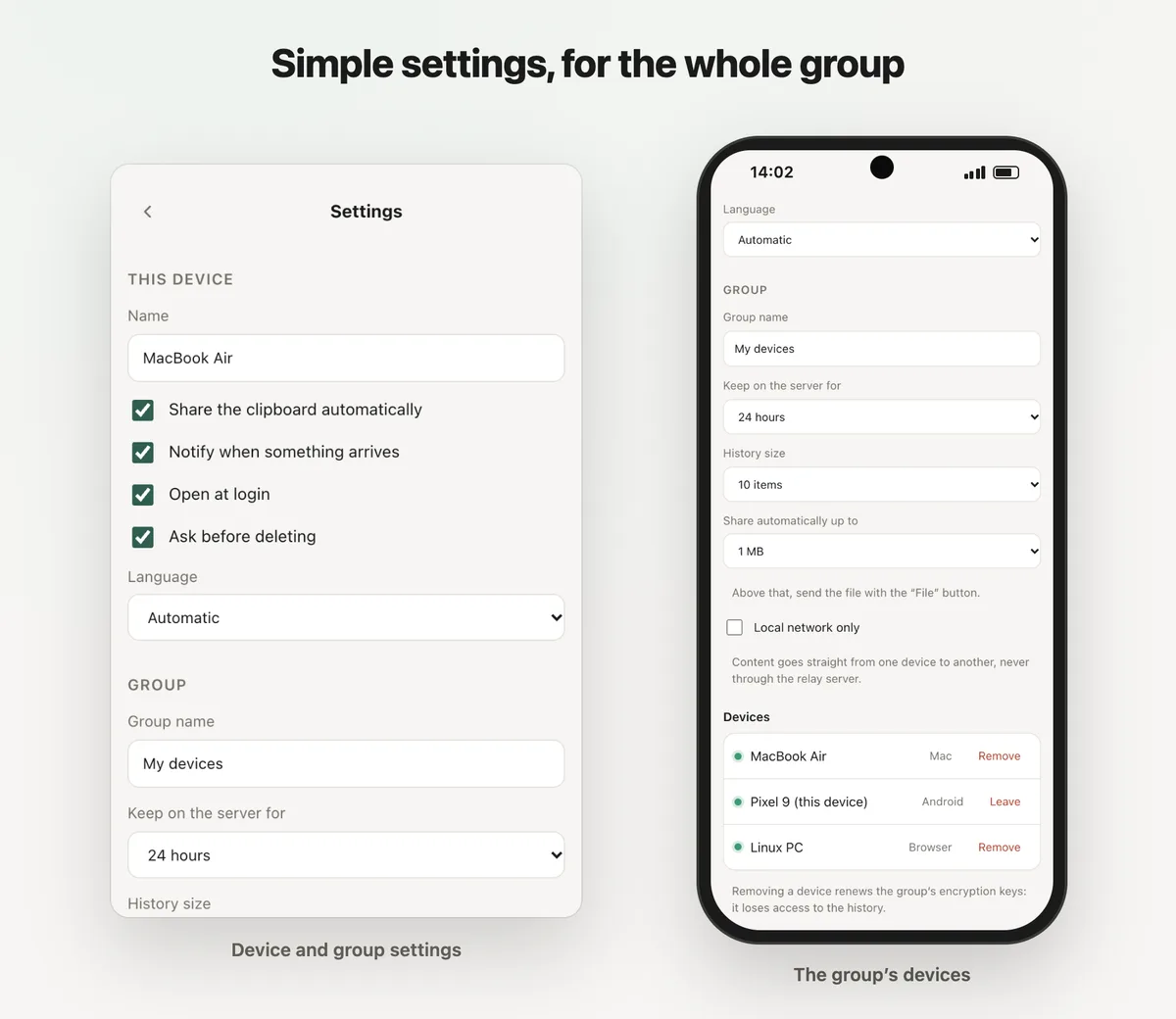
24 hours by default. You can choose 10 minutes, 1 hour, 24 hours or 7 days. After that, everything is deleted.
In the group’s settings, you also choose the size of the history (1 item, 10 or unlimited) and the maximum size of automatic sharing.
My phone was off: do I still get what was shared?
Yes. What you share waits on the server until it expires, and your phone gets it as soon as it reconnects. The server keeps nothing on disk: if it restarts, everything is deleted.
Is there a size limit?
No, not per file. Only the free space on the server counts, shown in Settings. On a computer, automatic sharing stops at 1 MB by default; above that, send the file with the File button.
Can I share with my family or colleagues?
Yes. Create a group for each (family, work…) and invite their devices to it. What you share in one group doesn’t show up in the others.
What if I lose a device?
Remove it from another of your devices: it immediately loses access to everything you share.
Can I use it in a terminal, a script or with an AI agent?
Yes. The entrenous command sends and receives files from a terminal, end-to-end encrypted like in the app. For example:
- a server sends a file to your phone;
- a script gets the photo you just took;
- an AI agent sends you what it made.
Can I use my own server?
Yes. The relay server installs in two commands with Docker. Then choose it in the apps (Settings → Server), or open the web app from your server. The hosting guide
Support Entre Nous
Entre Nous is free, with no ads and no trackers. Donations pay for the public relay's server and fund maintenance and new features.